ITOnLife

A man who comes from HK work at a IT company, small potato staff

Showing posts with label Windows. Show all posts

Sunday, October 11, 2020

Windows 10 & network share access denied

 Symptom

This is what you see when you try to go to any \\something network share:
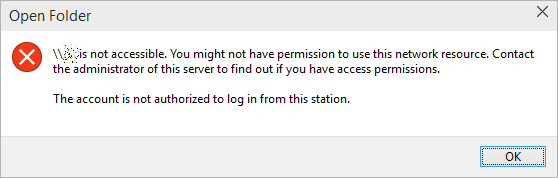
\\something is not accessible. You might not have permission to use this network resource. Contact the administrator of this server to find out if you have access permissions. The account is not authorized to log in from this station.

Share access problem


Solution

Fire up the registry editor (regedit). Navigate to:

HKLM\SYSTEM\CurrentControlSet\Services\LanmanWorkstation\Parameters
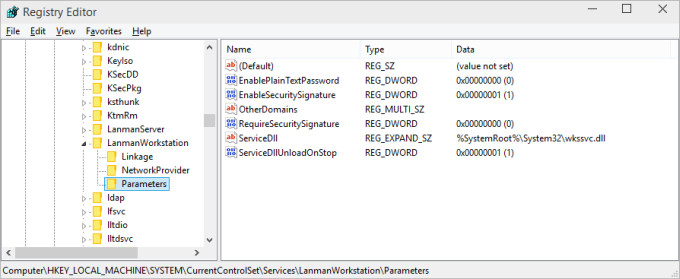
Create key for network access

Here, you will need to create a new parameter (32-bit DWORD). Right-click:

Add new key

Then, name it AllowInsecureGuestAuth and assign it a value of 1.
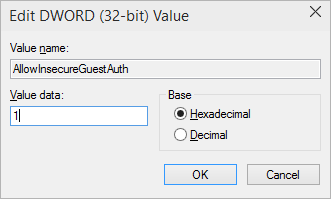
Value

The hive should look thusly:

View after, key added

And you're done. Reboot, and enjoy your network access.


 https://www.dedoimedo.com/computers/windows-10-network-share-access.html


And more reference:

https://blog.xuite.net/yh96301/blog/548723165-Windows+10+%E5%AD%98%E5%8F%96%E7%B6%B2%E5%9F%9F%E5%85%A7%E5%88%86%E4%BA%AB%E7%9A%84%E8%B3%87%E6%96%99

Mapped Network Drives don’t work in Windows 10 v2004


There are several fixes or workarounds for this issue. On my systems, I had to remove the Windows credentials for the target computer using the Credential Manager. Then, I remapped the drives, typed in the username and password for the network share. That did the trick on my Windows 10 v2004 systems.

Reset the stored credentials using Credential Manager

Removing the stored username & password for the network share, and then remapping the network drive helps in some cases.

  1. Open Control Panel → User Accounts → Credential Manager
  2. Select Windows Credentials
  3. Under Windows Credentials, click the chevron next to the name of the network computer (or NAS) that hosts the share.
    windows 10 2004 mapped network drives not working
  4. Click Remove to delete the stored credentials of that particular computer or share.
  5. When the Delete Windows Credential dialog appears asking, “Are you sure you want to permanently delete this Windows credential?”, click Yes to continue
  6. Exit the Credential Manager window.
  7. Open This PC and disconnect the mapped drive.
    windows 10 2004 mapped network drives not working
  8. Restart Windows.
  9. Map the network drive again, with the Reconnect at sign-in option enabled.
  10. Restart Windows to check if the drive mapping works.

That should fix the problem. If not, follow the next procedure.

Add the “ProviderFlags” registry value

Adding the ProviderFlags (DWORD 32-bit) registry value and set its data to 1 helps some users, especially if your mapped network drive points to an old SMBv1 share. Follow these steps:

  1. Right-click Start, click Run, type regedit, and then click OK.
  2. Locate the following registry subkey:
    HKEY_CURRENT_USER\Network\[drive letter]

    Note: The [drive letter] placeholder represents the mapped drive.

  3. Create a new DWORD (32-bit) value named ProviderFlags
  4. Double-click ProviderFlags value. In the Value data box, type 1
    windows 10 2004 mapped network drives not working
  5. Repeat the above procedure for each mapped network drive on the computer.
  6. Click OK, and exit Registry Editor.
  7. Restart Windows.

See if the mapped network drive persists across reboot.

Credits to user LeeB1430 for the above fix.

Map network drives using a batch file

If none of the above fixes help, then, as a workaround, you can map the network drive at every startup using a batch file.

  1. Copy the following lines and paste them in Notepad. Change the network or computer name, the share name, and the drive letter accordingly to match yours.
    timeout /t 30
    net use z: "\\networkname\sharedfolder" /persistent:no

    The parameter persistent:no is equivalent to unchecking the Reconnect at sign-in option in the Map Network Drive dialog box.

  2. Save the file as mapdrive.bat
  3. Open the Startup folder of your user profile by typing shell:startup in the Run dialog.
    (To know more about the shell: commands, check out this article.)
  4. Place the batch file mapdrive.bat or its shortcut in the Startup folder.

That’s it. The drive mappings are created at every startup rather than making it persistent across reboots.

Important

The batch file method assumes that the username and password of the network drive are already stored under Windows Credentials. To store it, you may map the network drive interactively using the Map a Network Drive menu option, with the Reconnect at sign-in enabled. Then, disconnect the mapped network drive. That way, the username & password get stored in the Credentials Manager.

Alternatively, you can add the user name and password of the network share using the Add a Windows Credential option.

windows 10 2004 mapped network drives not working

Note: A similar workaround using PowerShell is available in the Microsoft Knowledgebase article Mapped network drive may fail to reconnect in Windows 10

Hope one of the fixes or workarounds helped you access your mapped network drives without any issues in Windows 10 2004.


Source from: 

https://www.winhelponline.com/blog/mapped-network-drives-fix-windows-10-v2004/

Turn back the clock to Windows 7 Photo Viewer from Windows 10

如何在Windows 10上用回Windows 7的看圖軟件

 ...................................

Windows Registry Editor Version 5.00
; Change Extension's File Type
[HKEY_CURRENT_USER\Software\Classes\.jpg]
@="PhotoViewer.FileAssoc.Tiff"
; Change Extension's File Type
[HKEY_CURRENT_USER\Software\Classes\.jpeg]
@="PhotoViewer.FileAssoc.Tiff"
; Change Extension's File Type
[HKEY_CURRENT_USER\Software\Classes\.gif]
@="PhotoViewer.FileAssoc.Tiff"
; Change Extension's File Type
[HKEY_CURRENT_USER\Software\Classes\.png]
@="PhotoViewer.FileAssoc.Tiff"
; Change Extension's File Type
[HKEY_CURRENT_USER\Software\Classes\.bmp]
@="PhotoViewer.FileAssoc.Tiff"
; Change Extension's File Type
[HKEY_CURRENT_USER\Software\Classes\.tiff]
@="PhotoViewer.FileAssoc.Tiff"
; Change Extension's File Type
[HKEY_CURRENT_USER\Software\Classes\.ico]
@="PhotoViewer.FileAssoc.Tiff"

.....................................


Win7_Photo_Viewer.reg

Monday, October 05, 2020

Windows 7 and Server 2008 R2 更新 KB4480970 and KB4480960 引至網絡問題(SMB唔通)


如果一直有用SMB share files而突然唔得,可以開cmd (run as Administrator),然後copy以下command 或修改registry

  1. reg add HKLM\SOFTWARE\Microsoft\Windows\CurrentVersion\Policies\system /v LocalAccountTokenFilterPolicy /t REG_DWORD /d 1 /f 
  2. Reboot the PC.

Pls read detail as Reference

single-label DNS names Windows 10 Pro Bulid 1803 or later cannot join domain solution


最近因為有客人的AD是由Singal-Label domain name組成.

現在domain name一般是: domain.local / domain.com / domain.net etc組合而成.
但是Windows 2000之前的domain name可能只有domain (without .local/.com/.net後綴),由於win2000 upgrade to win2003, windows 2008, windows 2012之類,仍保持了singal-label domain
因此在Windows 10 Bulid 1803之後的version default不再support single-label dns的domain name (cannot join domain),所以要人手修改registry才可以順利進行.


Method 1: Use Registry Editor

Domain controller locator configuration for Windows XP Professional and later versions of Windows
Important This section, method, or task contains steps that tell you how to modify the registry. However, serious problems might occur if you modify the registry incorrectly. Therefore, make sure that you follow these steps carefully. For added protection, back up the registry before you modify it. Then, you can restore the registry if a problem occurs. For more information about how to back up and restore the registry, click the following article number to view the article in the Microsoft Knowledge Base:
322756 How to back up and restore the registry in Windows
On a Windows-based computer, an Active Directory domain member requires additional configuration to support single-label DNS names for domains. Specifically, the domain controller locator on the Active Directory domain member does not use the DNS server service to locate domain controllers in a domain that has a single-label DNS name unless that Active Directory domain member is joined to a forest that contains at least one domain, and this domain has a single-label DNS name.

To enable an Active Directory domain member to use DNS to locate domain controllers in domains that have single-label DNS names that are in other forests, follow these steps:
  1. Click Start, click Run, type regedit, and then click OK.
  2. Locate and then click the following subkey:
    HKEY_LOCAL_MACHINE\SYSTEM\CurrentControlSet\Services\Netlogon\Parameters
  3. In the details pane, locate the AllowSingleLabelDnsDomain entry. If the AllowSingleLabelDnsDomain entry does not exist, follow these steps:
    1. On the Edit menu, point to New, and then click DWORD Value.
    2. Type AllowSingleLabelDnsDomain as the entry name, and then press ENTER.
  4. Double-click the AllowSingleLabelDnsDomain entry.
  5. In the Value data box, type 1, and then click OK.
  6. Exit Registry Editor.
DNS client configuration
Important This section, method, or task contains steps that tell you how to modify the registry. However, serious problems might occur if you modify the registry incorrectly. Therefore, make sure that you follow these steps carefully. For added protection, back up the registry before you modify it. Then, you can restore the registry if a problem occurs. For more information about how to back up and restore the registry, click the following article number to view the article in the Microsoft Knowledge Base:
322756 How to back up and restore the registry in Windows
Active Directory domain members and domain controllers that are in a domain that has a single-label DNS name typically must dynamically register DNS records in a single-label DNS zone that matches the DNS name of that domain. If an Active Directory forest root domain has a single-label DNS name, all domain controllers in that forest typically must dynamically register DNS records in a single-label DNS zone that matches the DNS name of the forest root.

By default, Windows-based DNS client computers do not attempt dynamic updates of the root zone "." or of single-label DNS zones. To enable Windows-based DNS client computers to try dynamic updates of a single-label DNS zone, follow these steps:
  1. Click Start, click Run, type regedit, and then click OK.
  2. Locate and then click the following subkey:
    HKEY_LOCAL_MACHINE\SYSTEM\CurrentControlSet\Services\DnsCache\Parameters
  3. In the details pane, locate the UpdateTopLevelDomainZones entry. If the UpdateTopLevelDomainZones entry does not exist, follow these steps:
    1. On the Edit menu, point to New, and then click DWORD Value.
    2. Type UpdateTopLevelDomainZones as the entry name, and then press ENTER.
  4. Double-click the UpdateTopLevelDomainZones entry.
  5. In the Value data box, type 1, and then click OK.
  6. Exit Registry Editor.
These configuration changes should be applied to all domain controllers and members of a domain that have single-label DNS names. If a domain that has a single-label domain name is a forest root, these configuration changes should be applied to all the domain controllers in the forest, unless the separate zones _msdcs.ForestName, _sites.ForestName, _tcp.ForestName, and _udp.ForestName are delegated from the ForestName zone.

For the changes to take effect, restart the computers where you changed the registry entries.

Notes
  • For Windows Server 2003 and later versions, the UpdateTopLevelDomainZones entry has moved to the following registry subkey:
    HKEY_LOCAL_MACHINE\SOFTWARE\Policies\Microsoft\Windows NT\DNSClient
  • On a Microsoft Windows 2000 SP4-based domain controller, the computer will report the following name registration error in the System event log if the UpdateTopLevelDomainZones setting is not enabled:
  • On a Windows 2000 SP4-based domain controller, you must restart your computer after you add the UpdateTopLevelDomainZones setting.
 詳情可以參閱Microsoft的文献:
https://support.microsoft.com/en-us/help/300684/deployment-and-operation-of-active-directory-domains-that-are-configur